
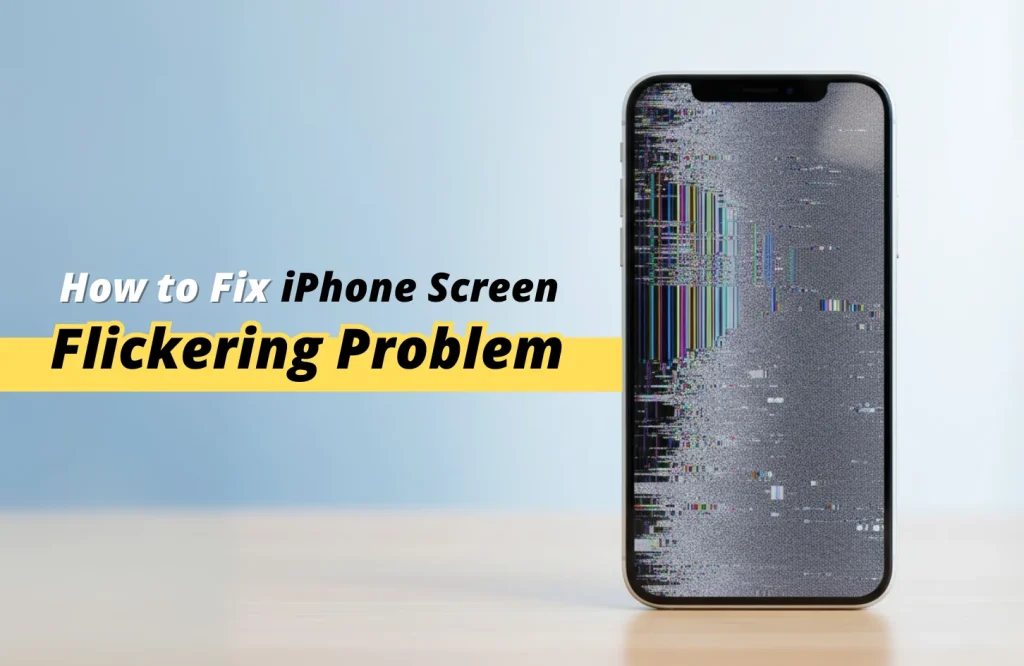
Imagine this, you’re in the middle of an important video call and suddenly, your iPhone screen starts flickering. The display glitches, lines appear, and your focus is gone in an instant. It’s frustrating, especially when your device is supposed to be your most reliable companion.
The good news? You don’t have to put up with the annoyance. With expert support from Apple Gadgets Care, your iPhone can get back to working like new. From stubborn frozen screens to the dreaded black screen of death, we’ve seen it all, and fixed it all.
Let’s walk you through the steps to solve screen flickering issues and keep your iPhone running smoothly.
How to fix flickering screen on iPhone: Few Fixes to Follow
Without wasting your time, let’s dive straight into a few common iPhone display issue fixes you can do to see if the flickering issue is solved or not. Here are they down below:
Turn off HDR on Photos App:
High Dynamic Range (HDR) settings enhance your screen to display photos with richer contrast and detail. However, this feature can sometimes cause performance issues. Try switching off HDR to check if the flickering stops. Follow the steps down below to turn it off:
> Open the Settings app.
> Tap Photos.
> Turn off View Full HDR.
For older generation iPhones, try checking inside the camera app for “Smart HDR”
> Open the Settings app.
> Tap Camera.
> Go down and find “Smart HDR”
> Toggle it off.
Uninstall Troubled Applications:
Sometimes high spec applications might cause trouble and freeze the screen or act differently. That is why closing certain apps will minimize this screen freezing issue. To uninstall and remove these applications, follow the process down below:
> While unlocked, tap & hold on home screen;
> You will see the apps are shaking and a little minus icon appearing on top left corner of each app;
> Click on the minus icon and you will see a confirmation for deleting the app;
> Click on the “Delete App” option to remove the buggy or troubled apps.
Force Restart iPhone:
A sudden display flickering might also be an issue due to system bugs. That is why a force restart of your iPhone can help reset the system and solve this flickering issue. Here’s a quick solution to restart an iPhone 8 or later versions (including iPhone SE 2nd Gen):
> Quickly press & release the “Volume Up” button;
> Quickly press and release “Volume Down” button & instantly hold “Right Side” button;
An animation will appear for powering off as “Slide to power off”.
> Slide the option from left to right to finally power off the iPhone.
Update iPhone:
It is also possible to miss an update when it arrives. It’s suggested to check the recent updates manually by going to the settings. Follow the steps to manually check for update:
- When iPhone is unlocked, go to settings;
- Scroll down a bit and you will find “General”;
- Click and open “General”;
- Below the “about” option you will find “Software Update”
- You will see available updates there;
- Click on the “Update Now” option to get a newer OS update.
Now that you have manually updated your iPhone, let’s take a look at how to set automatic updates for iPhones. You can also set the update to download automatically whenever an update arrives for your iPhone. Here is the process down below to set automatic updates:
- When iPhone is unlocked, go to settings;
- Scroll down and go to “General”;
- Below “About” option select “Software Update”;
- At top you will find “Automatic updates”;
Inside the option, you will find “iOS Updates” for both automatic installs and automatic download.
- Toggle on options to enable Automatic updates.
And this is how you will get automatic update notifications from now on.
What causes iPhone screen flickering?
It’s a stressful situation we all experience when we see a sudden flickering iPhone screen. Especially when it suddenly disrupts calls, browsing, or daily tasks. And such problems don’t occur randomly, there are possible reasons for this. So, eventually we try to identify them and try to solve it in a quick adjustment or seek professional repair. Some of the most common reasons are given down below:
Physical Damage:
It’s possible you have dropped your iPhone accidentally, causing it to damage the screen or internal parts. Even minor cracks or loose connections can lead to this flickering. In such scenarios, repair might only be the valid option you have left.
Software glitches:
Sometimes there could be bugs inside the iPhone due to system crashes or application errors. These are some kind of glitches which can happen after a failed update or when multiple tasks are overloaded at once. Restarting the app or properly updating often solves the issue.
Display Settings:
Wrong display settings like brightness or auto adjustment features can lead to screen flickering. If the settings are not balanced, the iPhone display might behave abnormally. It’s better to reset the display settings to see if it works. Otherwise it’s advised to seek professional help.
App Crash:
If a particular app is not well optimized then you can experience the screen flickering sometimes. Most of the time it happens when the app conflicts with the system. Uninstalling the app and updating the app often solves the problem.
When to Seek Professional Help
When the manual solution doesn’t work for you, then there’s a possibility that you are experiencing this flickering due to a hardware failure. So, if any of the solutions is not working for you, then it’s high time you consider checking with a professional.
If your iPhone screen flickers nonstop, our technicians can quickly identify whether it’s a hardware fault or a software issue. We use precise tools and authentic parts to restore your display to its original clarity. And with fast turnaround service, you won’t have to stay disconnected for long.
Final Thought
As for the last few words, it’s an obvious thought that we all love our iPhones. And why won’t we? This device plays a crucial role in our daily life, keeping us connected with our corporate and personal lives.
And that is why it’s important to function flawlessly, because a sudden obstruction like flickering issue can be really irritating all of a sudden. Today’s few tips on solving such issues might help you resolve the problem. Otherwise it would be wise to seek expert’s observation to find out the core cause of this flicker issue on iPhone.
Above all, stay tuned to Apple Gadgets Care blog page, to get informed about your devices technical tips and tutorials.