8 Ways to Maximize Your iPad Battery Life
Nothing is more frustrating than watching your iPad’s battery percentage drop faster than expected, especially when you need it the most. While every rechargeable battery naturally loses capacity over time, many cases of fast battery drain are caused by settings and features that consume power in the background. Fortunately, a few simple changes can help your iPad last much longer on a single charge.
In this guide, we’ll walk you through eight practical ways to maximize your iPad’s battery life. Each method is easy to follow and can make a noticeable difference in your iPad’s daily performance. Without waiting any longer, let’s jump right in:
1. Reduce Screen Brightness
When you use your iPad, screen is one of the biggest factors affecting battery life. The brightest display setting will help you when you are outside, but will also drain the battery much faster. Reducing the brightness to your comfort level can make a huge difference in energy usage without compromising the viewing experience when indoors.
The brightness can be adjusted by swiping down from the top-right corner of the screen to open the Control Center, and then dragging the brightness slider to your desired level. It can also be set via Settings > Display & Brightness or by using Auto-Brightness, which automatically adjusts the screen brightness to match the surrounding light. If possible, use Dark Mode to get even better battery performance. These basic display setting tweaks can be a significant difference and can help your iPad run for longer on a single charge.
2. Turn On Low Power Mode
One of the most simple battery-saving features Apple has is the Low Power Mode. If it is turned on, it temporarily shuts down various background processes, automatic downloads and some system tasks that are not needed right away. This ensures that your iPad is optimized to use its battery more efficiently for the applications you use. This will help the battery to hold its charge much longer during the day.
While many users only switch to Low Power Mode when the battery is at 20%, it is possible to do so at any point when you know you are going to be away from a charger for a few hours.
Follow These Steps
Step 1: Open Settings.
Step 2: Tap Battery.
Step 3: Toggle Low Power Mode on.
Step 4: Continue using your iPad normally. You’ll notice little difference in everyday tasks like browsing, reading, watching videos, or taking notes.
3. Keep Your iPad Updated
Make sure your iPad is always running the latest version of iPadOS to get the best battery performance. Apple frequently releases software updates that include battery optimizations, bug fixes, security improvements, and performance enhancements. The latest version ensures that the device can use power more efficiently, and limits the amount of time that the battery is used unnecessarily. Also, make sure to keep your apps updated, as developers will typically fix bugs and optimise the performance of your applications.
Follow These Steps
Step 1: Open Settings and tap General.
Step 2: Select Software Update.
Step 3: If an update is available, download and install it.
Step 4: Open the App Store, tap your profile picture, and install any pending app updates.
4. Turn Off Background App Refresh
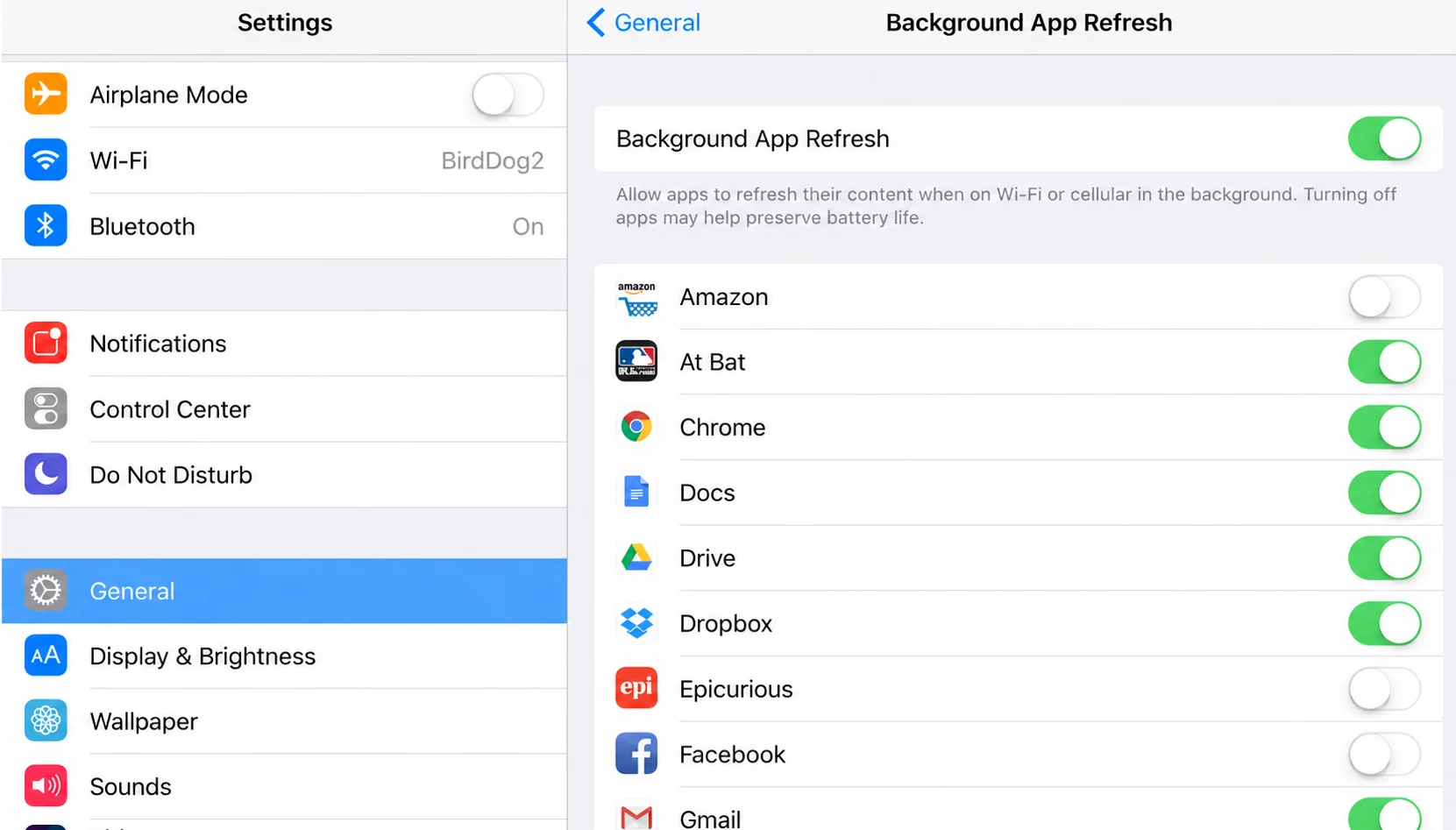
Your iPad doesn’t stop working just because the screen is off. Many apps continue running in the background to refresh content, check for updates, and prepare notifications. While this feature improves convenience, it can also drain your battery faster, especially if multiple apps refresh throughout the day. If you rarely use certain apps, there’s no need for them to update constantly in the background. Turning off Background App Refresh for non-essential apps reduces unnecessary power consumption and helps your iPad stay charged longer. You can leave it enabled only for apps that truly need real-time updates, giving you a better balance between performance and battery life.
Follow These Steps
Step 1: Open Settings.
Step 2: Tap General.
Step 3: Select Background App Refresh.
Step 4: Either turn it off completely or disable it only for apps that don’t need continuous updates, such as shopping apps, games, or travel apps.
5. Manage Wi-Fi, Bluetooth, and Cellular Connections
Your iPad relies on wireless technologies like Wi-Fi, Bluetooth, and cellular data to stay connected. But these features can also consume a significant amount of battery power. While Wi-Fi is generally more power-efficient than cellular data, keeping multiple wireless connections active when they’re not needed can gradually drain your battery. This is especially true if your iPad is constantly searching for a Wi-Fi network or struggling to maintain a weak cellular signal. Taking a few moments to manage these settings can noticeably improve battery performance without affecting your daily use.
Follow These Steps
Step 1: Turn off Bluetooth if you’re not using wireless headphones, keyboards, or other Bluetooth accessories.
Step 2: Disable AirDrop when you’re not sharing files. You can change it to Receiving Off from the Control Center.
Step 3: Turn off Personal Hotspot after you’re finished using it to prevent unnecessary battery drain.
Step 4: If you’re in an area with poor cellular coverage and don’t need internet access, enable Airplane Mode to stop your iPad from continuously searching for a stronger signal.
Read More: iPad Common Problems & Solutions
6. Check Which Apps Drain the Most Battery
You don’t always need to be concerned about your iPad consuming the battery; sometimes it’s an app that causes rapid battery consumption. Some apps consume more CPU than others, particularly games, video editing applications, GPS navigation, video conferencing programs, and streaming applications. Fortunately, iPadOS has a built-in Battery Usage tool that enables you to view which apps are using the most battery power. This is helpful to keep tabs on which apps are sucking up battery life and whether they can be updated, focused on, or eliminated.
Follow These Steps
Step 1: Open the Settings app.
Step 2: Tap Battery.
Step 3: Scroll down to the Battery Usage by App section.
Step 4: Review the list to see which apps have used the most battery over the last 24 hours or the past 10 days.
Step 5: If an app seems to use an unusually high amount of battery, update it through the App Store, reduce how often you use it, or uninstall and reinstall it if necessary.
7. Review Location Services
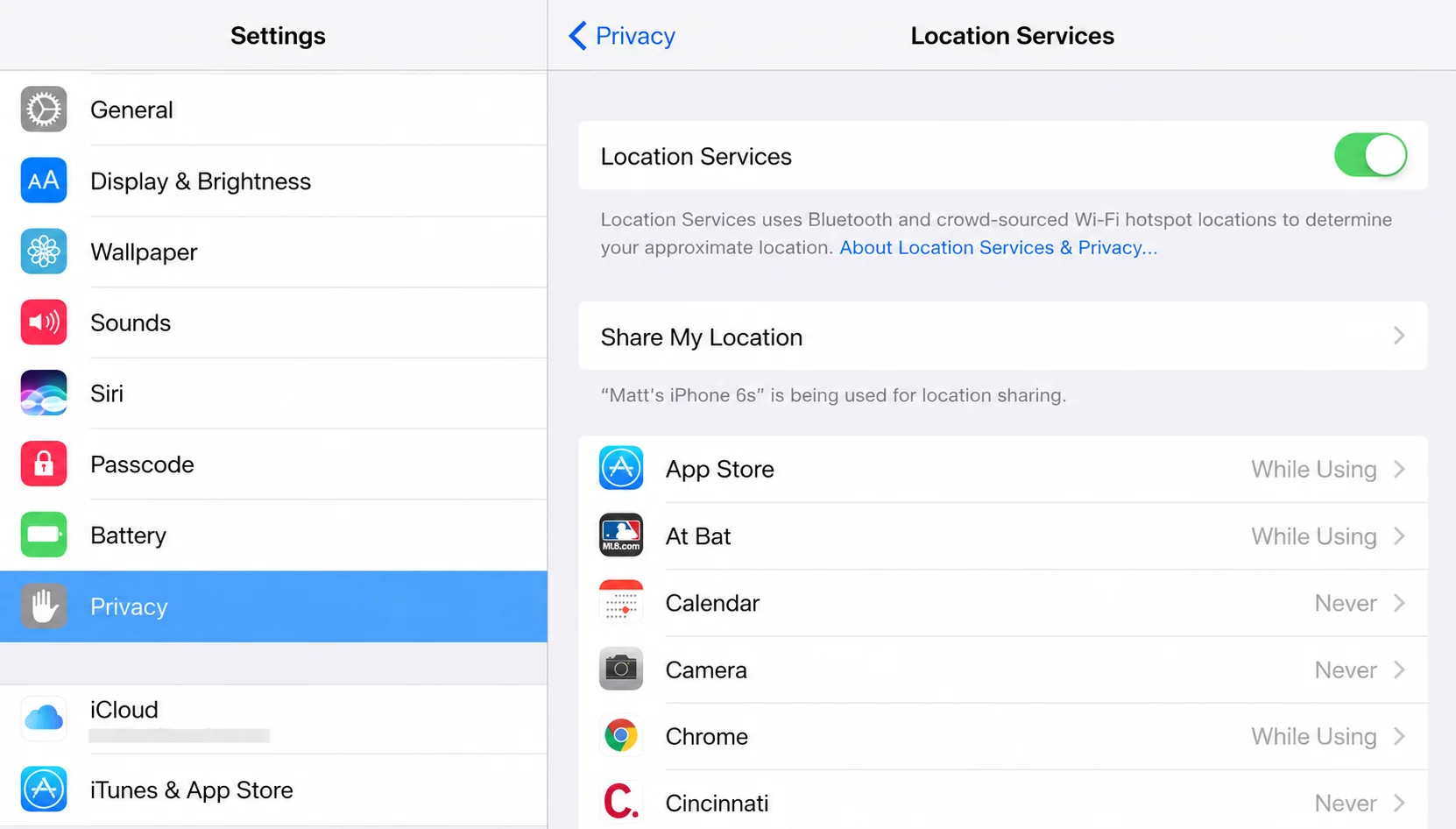
Location Services can improve the functionality of many apps. But keeping it enabled for every app can drain your iPad battery faster than necessary. Checking the applications that can use your location periodically can help reduce unwanted background activity and can save battery life. Only use location access for apps that require it, such as the weather app or navigation apps. On most applications, select While Using the App or don’t allow location access at all.
Follow these steps:
Step 1: Open Settings on your iPad.
Step 2: Tap Privacy & Security.
Step 3: Select Location Services.
Step 4: Review the apps that have location access.
Step 5: Set apps to While Using the App or Never if they don’t need your location all the time.
Step 6: Turn off Precise Location for apps that don’t require exact location.
8. Follow Healthy Charging Habits
Your charging habits play a bigger role in battery life than you might think, even with the iPad’s built-in battery management features. With the proper charger, proper temperature control, and some simple best practices, you can maintain your battery in better condition and use it for years to come. To keep your iPad’s battery healthy, follow the instructions below.
Follow These Steps
Step 1: Use Apple’s original charger or a certified and trusted charging accessory.
Step 2: Don’t charge in extremely hot areas or in direct sunlight.
Step 3: When possible, charge your iPad before the battery gets to 0% instead of waiting for it to empty completely each time.
Step 4: If you plan to store your iPad for an extended period, leave the battery at around 50% before turning it off.
Step 5: If your iPad is getting very hot during charge, remove the thick protective cases.
Benefits of Maximizing Your iPad Battery Life
There are a number of advantages to maximizing the use of your iPad battery. Just a few minutes of optimizing the battery settings on your iPad can enhance battery life.
Some of the key benefits include:
- More extended screen time for work, study, and entertainment
- Improved battery health, minimizing unnecessary battery wear.
- Better performance and less power usage with fewer applications running in the background.
- Lower overheating for longer periods of use.
- Healthy charging habits that will help you get a longer life out of your iPad.
- Less interruptions during the day with a better overall user experience.
Read More: How to Fix iPad Charging Issues
When Should You Replace Your iPad Battery?
No rechargeable battery lasts forever. Over time, battery capacity will diminish due to regular use. However, if you have already optimized your settings and still have a poor battery life, the battery may be broken.
Consider replacing the battery if:
- Your iPad’s battery life is limited to just a few hours.
- The battery percentage drops suddenly.
- Your device restarts or turns off unexpectedly.
- It takes a long time to charge.
- The iPad gets extremely hot while in use.
A new battery can bring back a lot of your iPad’s performance. Here at Apple Gadgets Care, we provide professional iPad battery replacement services by expert technicians. We use premium replacement parts and thoroughly test your device to guarantee its reliability in performance.
Conclusion
The key to maximizing the battery efficiency of your iPad is not about updating complex settings or buying special tools. It comes down to minor adjustments in your habits of handling the tablet each day. Dimming screen brightness, activating Low Power Mode, upgrading your iPadOS, restricting Background App Refresh, controlling wireless connections, keeping track of your battery usage, and minimizing notifications are all simple yet effective solutions that can be implemented in order to boost the performance of your battery.
No individual setting can make your battery twice as long-lasting as it was before instantly. But these 8 simple tips can help your iPad use less battery, so you can enjoy more screen time without needing to charge it often.
FAQ
Why does my iPad battery drain so quickly?
You may find the battery drains rapidly from your iPad because of the screen brightness, background app activity, location services, or battery aging. These settings can be adjusted to help extend battery life.
Does Low Power Mode help save battery on an iPad?
Yes. Low Power Mode can cut down on background activity, visual effects, and some functions of the system, so that your iPad consumes less power and lasts longer on a single charge.
When do I need to change the battery in my iPad?
If your iPad battery is draining faster than usual, shutting off prematurely, or not retaining a charge even after optimizing settings, it might require a battery repair or replacement by a qualified technician.

Fateha Firoz is a passionate Content Writer at Apple Gadgets Care. With a strong interest in gadgets, she keeps a close eye on the latest gadget trends and enjoys turning complex tech topics into simple, useful insights for everyday users.